
Examples
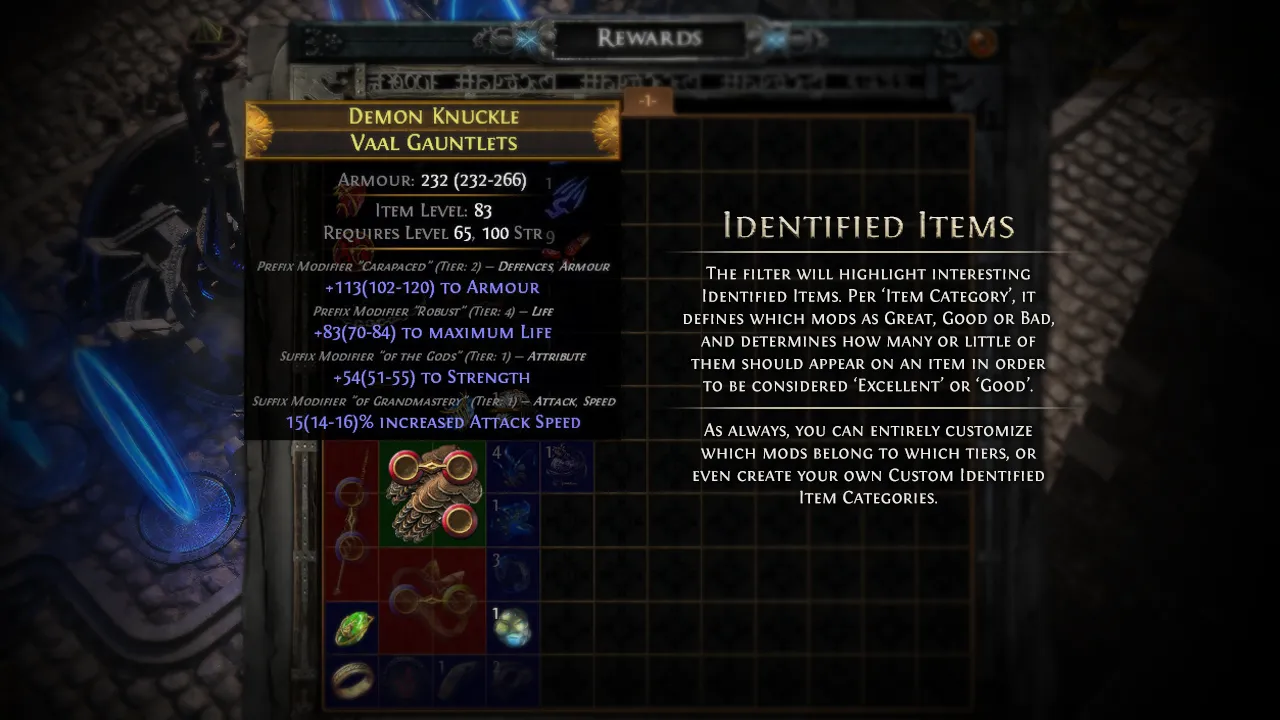
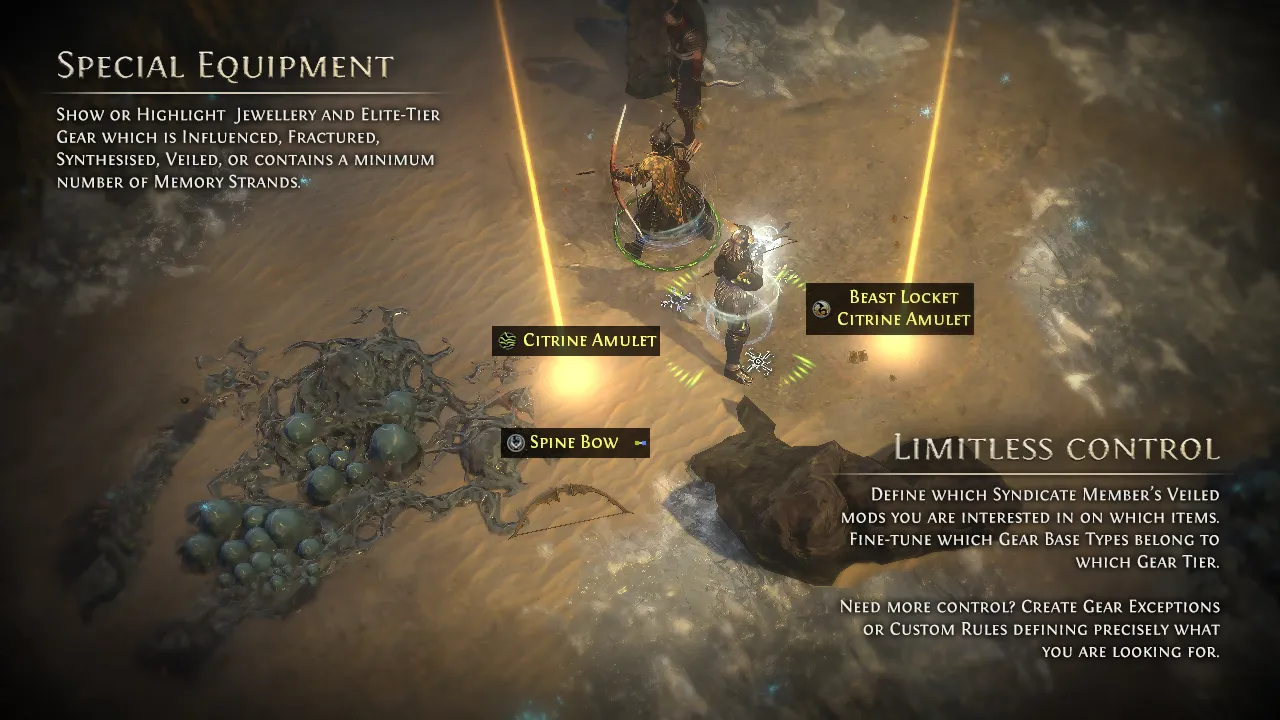
Filter Philosophy
Minimalist Style
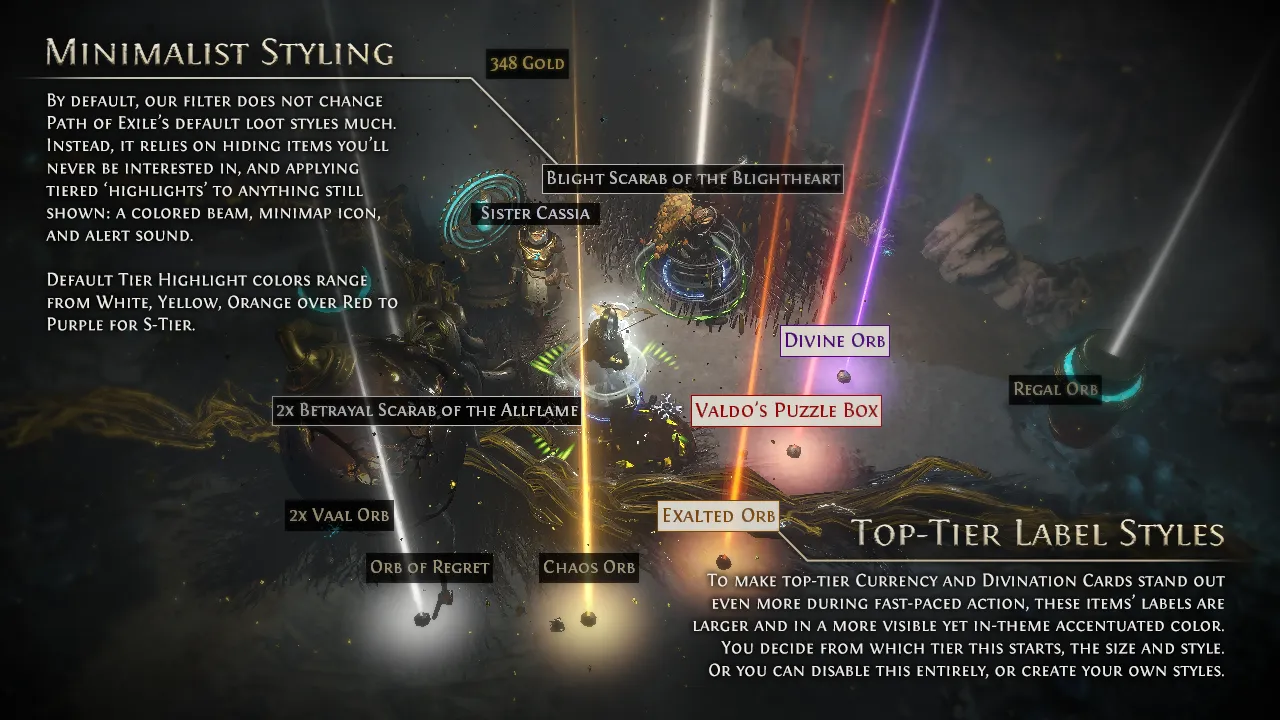
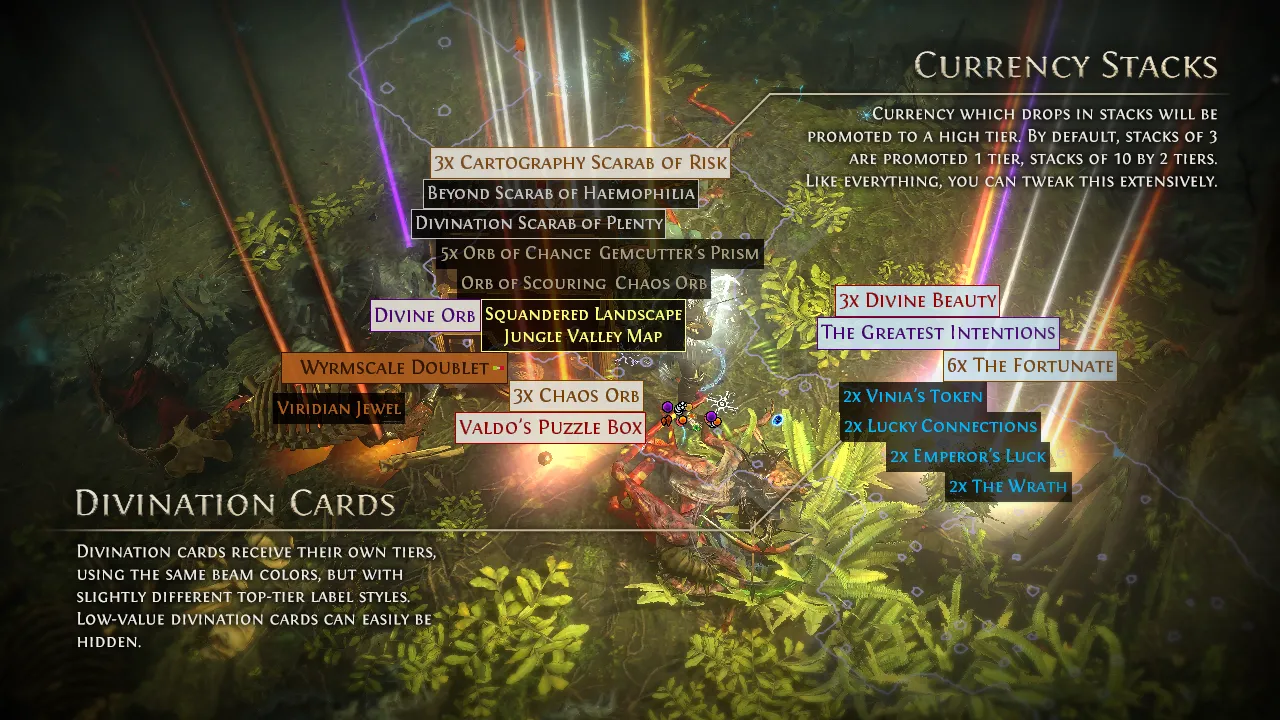
Path of Exile has beautiful graphics and a dark atmosphere. Its item color theme nostalgically goes back all the way to Diablo 2. We'd hate to spoil that by adding many different out-of-theme colors and fonts. This filter stays close to the 'default' label styles. We only add highlight beams in self-explanatory colors: white, yellow, orange, red and purple for top-tier items. Highlighted items are shown on the minimap too. Top-Tier items have more prominent, yet still in-theme label styles.
Remove Clutter
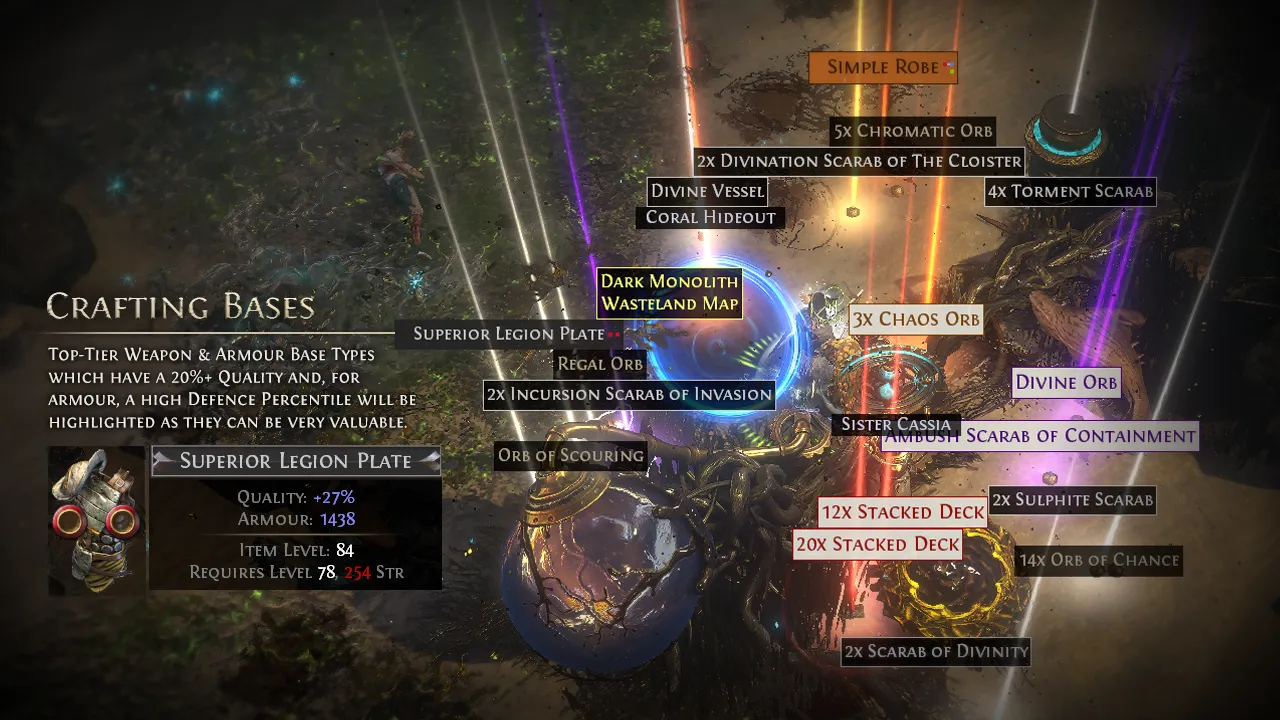
While leveling, you're only interested in weapons and armour that are useful for your build. During endgame, you're typically not interested in most items at all, except for 'special' gear like influenced, fractured or synthisised items. This filter hides the rest, always keeping a clean overview and adding to the game's beautiful atmosphere.
Enhance Efficiency
Using both the tiered color highlights and the minimap icons, you'll never miss any important item. The higher the tier, the more likely you will want to pick it up, even backtracing a bit.
Easy to use
Going with the presets is just fine for most people, but it's easy to adapt it to your preferences on the Quick Filters and Tier List pages.
Nothing to learn
You don't have to learn what different colors or styles mean: the Drop Tier system is self-exaplanatory. Higher Drop Tier means more valuable. And we don't change the game's default label styles. A valuable white item will be a potentially interesting crafting base. A valuable yellow item will be a good identified rare. Maps, Scarabs, Divination Cards, Gems -- they all keep the game's default label styles so you can immediately identify them without needing to learn anything.
Market-value Drop Tiers
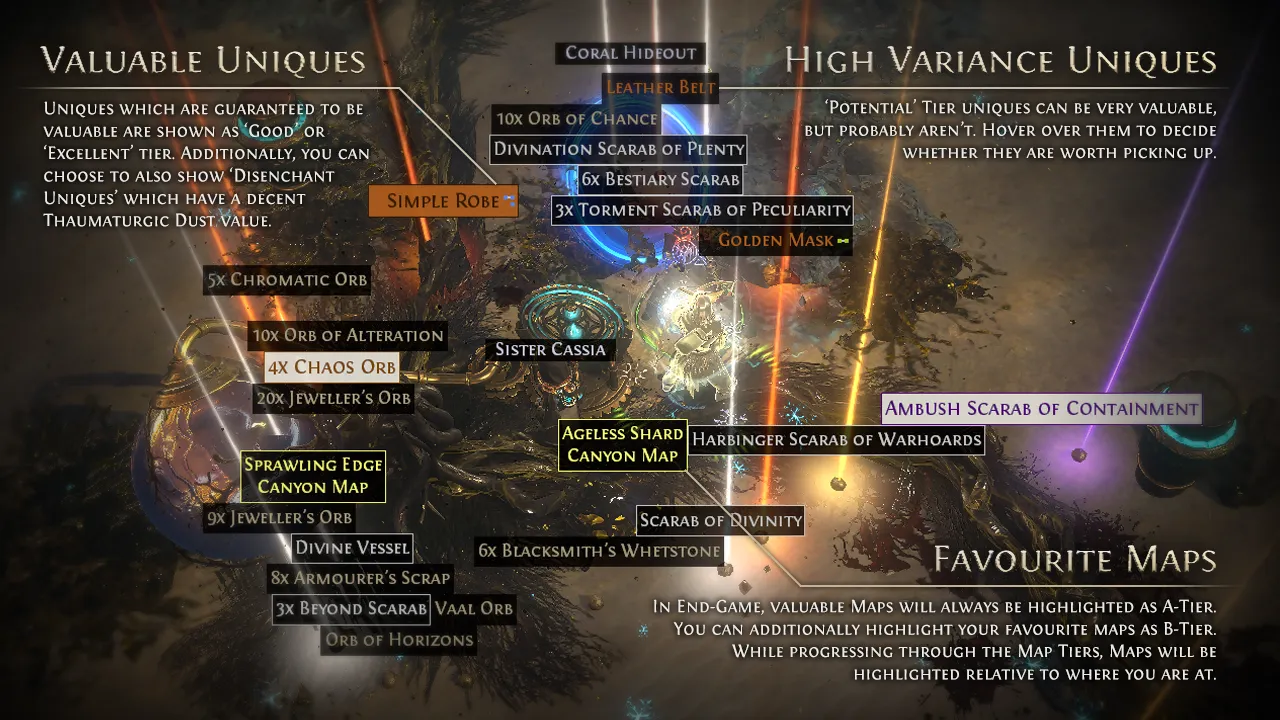
Currency and unique items can be more or less rare — that is, they have a higher or lower market value — a product of their utility divided by their drop chance. We call these Drop Tiers, white through red (or purple if you're really lucky). All drops are highlighted using an appropriate beam and icon on the minimap. Classifying items into these Drop Tiers is based on their value on the in-game Currency Exchange. Currency values are automatically updated every 4 hours, Uniques values once per day.
However, you can always move currency or Uniques to a different Drop Tier, or hide them entirely. It's as easy as dragging and dropping the item to the desired tier.
Safety first
Any change to this filter is tested beforehand, and gets a test-run. All item names are always exact matches from https://poe2db.tw, which is actual data-mined from the game client, avoiding typos.
Using the 'Sync' functionality is as safe as it gets. You authenticate on pathofexile.com, only allowing the tool access to most basic account information and the ability to save filters. We're using all GGG's API Developer requirements, which in turn follow the industry's security best practices such as using OAuth2 Authorization code flow with PKCE.
How To Use This Website
Creating your first filter
- Choose one of the Presets, and/or use the Quick Filters and the other tabs to adjust the filter to your preferences. The Quick Filter tab contains a tutorial to guide you around.
-
Once you're done, you have two options:
- Log in to pathofexile.com, and then Sync the filter directly to the game. It will be created as poe1filter in cyan. This is the only option for Console and GeForce Now players.
-
Alternatively, on PC click Select game folder once to choose your game folder (%userprofile%\Documents\My Games\Path of Exile). Then click Save to file to write the filter there as a .filter file named after the filter. If you picked the wrong folder, use Change game folder in Settings.
Pro tip: In Chrome, choose Allow on every visit when asked for file access, so you are not prompted on every visit. -
On Firefox and other non-Chromium browsers, use Download instead and place the file in that folder manually.
You can open the correct folder from the Game's Settings Menu under 'Game'.
Pro tip: In Windows, you can 'pin' a folder for easy access in your Windows Explorer. Just right-click the folder and select 'Pin to Quick Access'.
- In the game, select the filter from the dropdown menu in the 'Game' Settings Menu. The game will save it for future use, and load it on startup.
- This website will store your filters in the browser. As long as you use the same browser, you can always continue to edit your already stored filters.
Updating a filter
- Make the desired changes to your filter. Once finished, you have three options:
- If necessary first Log in again, and Sync your updated filter. This is the only option for console and GeForce Now players.
- Click Save to file to overwrite that filter's file in your game folder (each stored filter is saved under its own name). On Firefox, re-Download and replace the existing file — make sure the name is still correct, as your browser may append (1).
- Alternatively, copy the filter text using the 'Copy to Clipboard' button, and paste it directly in your filter file which is already in the game folder.
Pro Tip: You can just keep your filter file always open in the background while playing the game.
- In the game, click the 'Refresh' button next to the filter under 'Game' settings.
- The game will tell you when the filter was loaded correctly (or if it encountered a parsing error).
Creating other filters
You can create a different filter for each of your characters, for different stages of the game, or both. You can start from scratch, or start by cloning an existing filter.
- In the top-right-hand corner of the page, you can see your currently active filter. The default filter is called 'poe1filter'. Clicking (Change) will open the Filter Selector dialog.
- This dialog has three sections: Stored Filters, Account Filters, and Other Filters.
- The 'Stored Filters' section lists all filters stored on this browser, which are immediately available to edit and use. Here you can also rename a filter by clicking on its name and entering a new (unique) name.
- If you are logged in, the 'Account Filters' will display all other filters that were created with poe1filter.com which are stored on your pathofexile.com account, but not yet stored on your browser. The only thing you can do with those is download () them to your browser. Then you can start editing them.
Note: If you are not yet logged in to pathofexile.com, the dialog will display a link to do so. - If you have any filters stored on your pathofexile.com account which were not created with poe1filter.com, they are displayed purely for your information in the 'Other Filters' section.
- To create a new filter, click the 'Create New' button to create one with the default settings, or click the Clone () button next to an existing filter stored on the browser. Be sure to change the name.
- You can switch between filters at any time by clicking on the row. If you use Save to file, switching filters and saving writes a separate .filter file for each filter name.
- You can remove filters from your browser's storage (). Note that if you have syncronized them to your pathofexile.com account, they will still continue to exist there. It is not possible to delete filters from your account through GGG's API's. To delete a filter from your account, you must navigate to your pathofexile.com account's filters page.
- Lastly, from the Filter Selector dialog, you can synchronize () your stored filters to your pathofexile.com account. This does the same thing as using the 'Sync to PoE' button on the filter tool.
Importing a .filter file
You can import any .filter file that was generated with this website — your own, but also other players'!
- Ideally, if you use a downloaded filter, first place it in the game's filters folder.
- On this website, click the 'Import' button left of the 'Save to file' / 'Download' and 'Copy to Clipboard' buttons.
- If necessary, browse to the filter's location. Open the filter.
- Make any necessary adjustments. If you're importing another player's filter, be sure to double-check all the Quick Filter settings!
- After opening the filter, choose which cosmetics and/or rules to import. Use Select sections to import if you only want specific rule groups.
- Continue as you would normally.
Filter Syntax
For more information and a thorough guide on the Path Of Exile Item Filter options and syntax, check out the official page and/or this wiki page.
Feedback & support
Before reporting an issue, please make sure your filter is successfully loaded in the game. You can also Ctrl+C the item's details in-game, and Ctrl+V them anywhere in the tool. This will tell you which rule(s) are affecting the item, if any.
Feedback and bugreports are welcome at the PoE Forum Thread or on our Discord. When reporting an issue, please download and include your .filter file, and when relevant, copy/paste the item's details. That makes it much easier for us to help you!
I'm making and updating this website in my spare time. You can support me by buying me a coffee or by becoming a patron! But more importantly, if you like this filter & website, don't forget to spread the word on social/gaming media!
Credits
Huge shoutout to rasmus for letting me use the API of his awesome https://poe.ninja for currency and unique values, Uniques and Divination Card metadata, and build info.
And of course, a massive thanks to chuanhsing for the exhaustive PoE database: https://poedb.tw.

Looking for a Path of Exile 2 filter?
Visit poe2filter.com instead.